Shop the Look
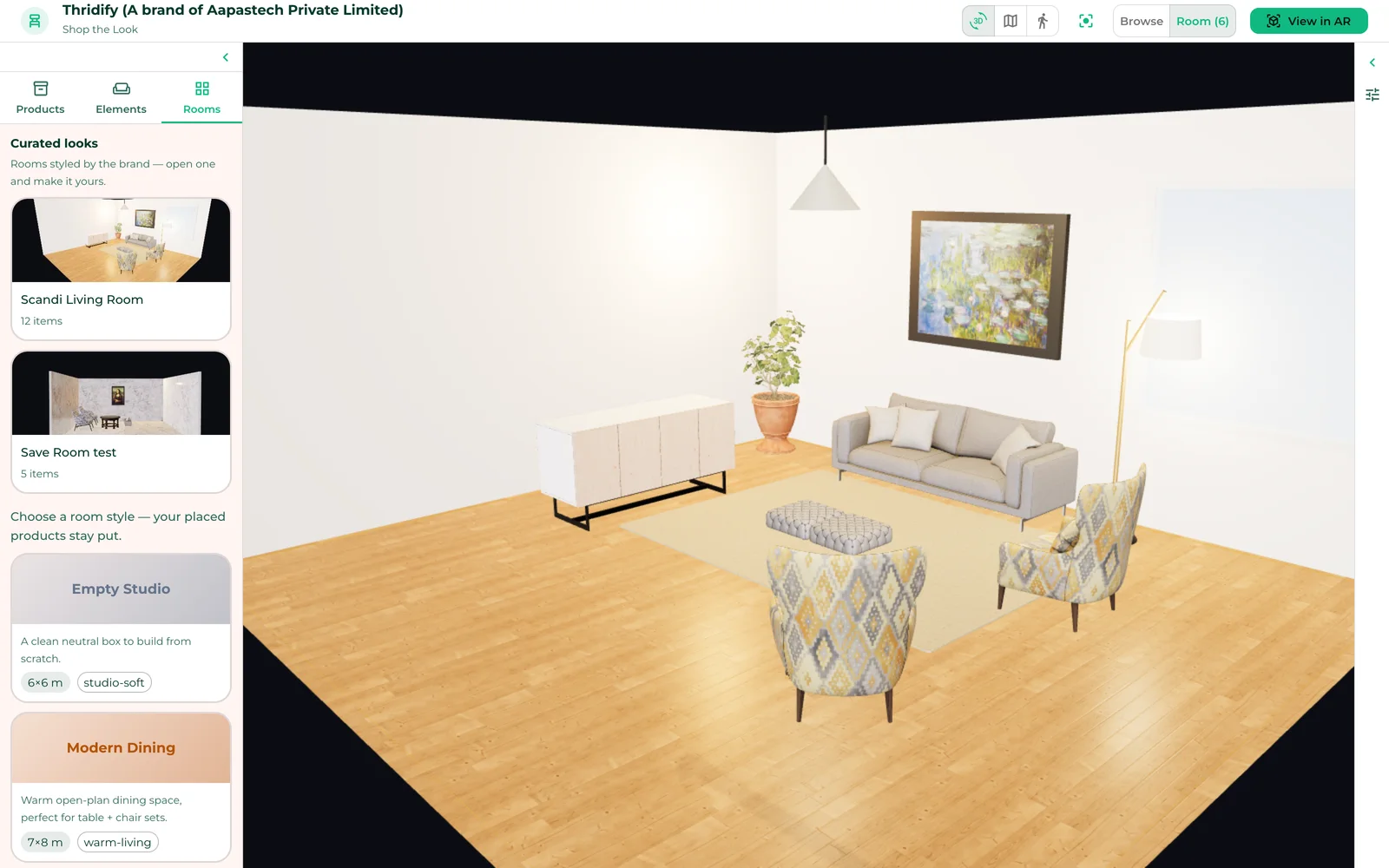
Publish rooms your team styled as curated looks on a brand-hosted 3D page. Shoppers open them, swap the fabric, add the rug, and view the whole room in AR.
The loop
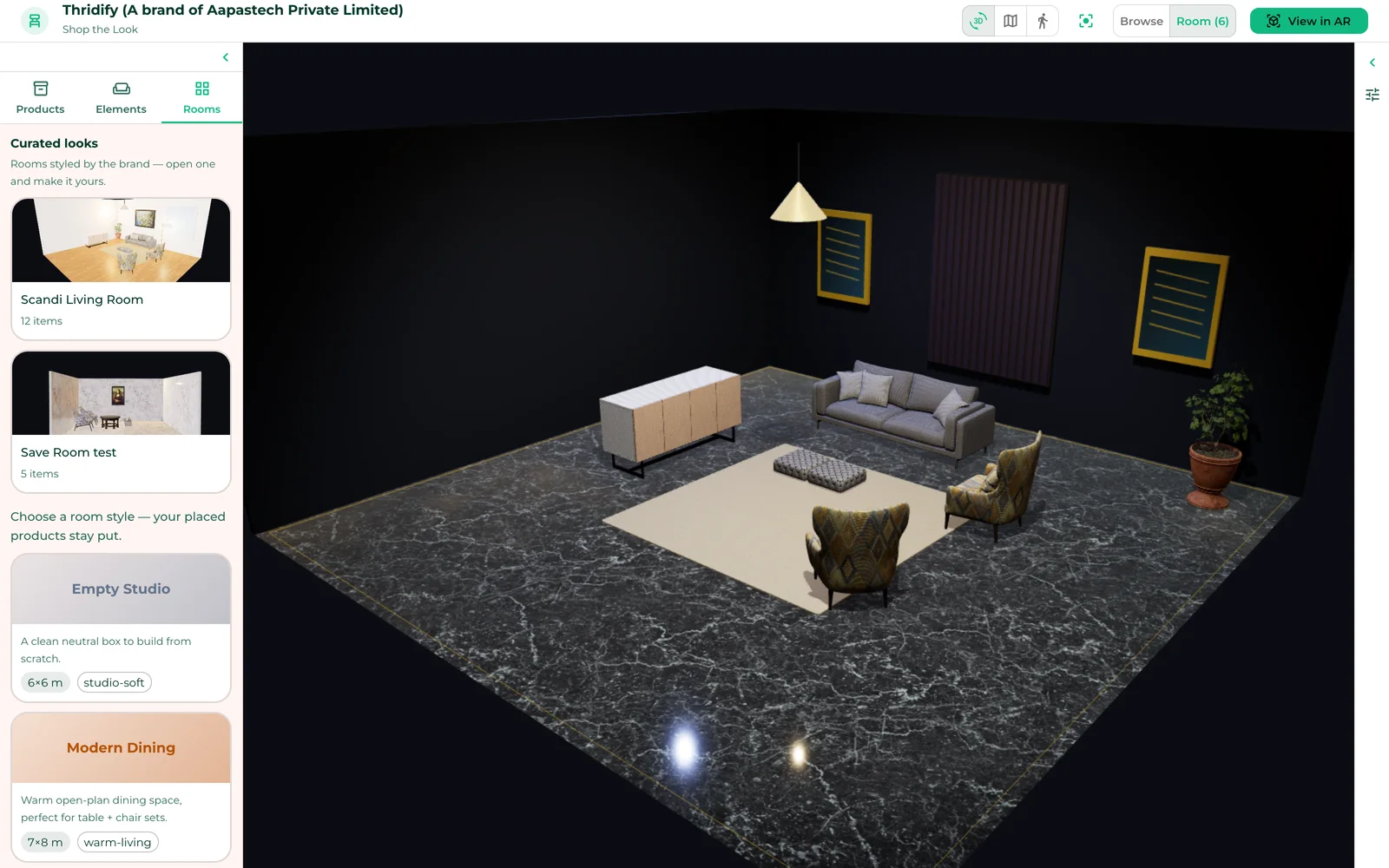
How a merchandiser builds a look, 12 Oct 2026: twelve stages in the admin, each a real screenshot of the editor, captions added. No 3D team, no code.
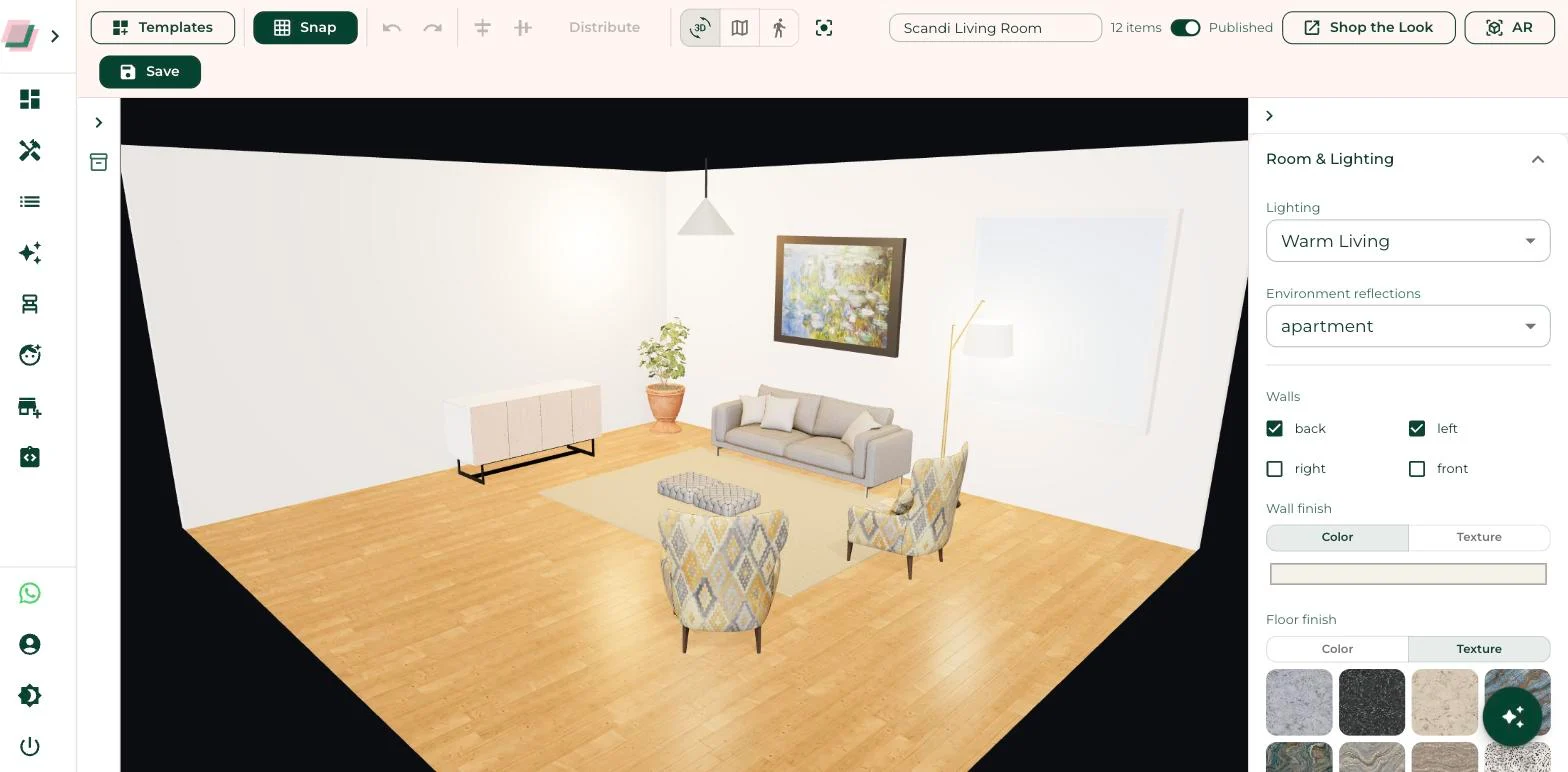
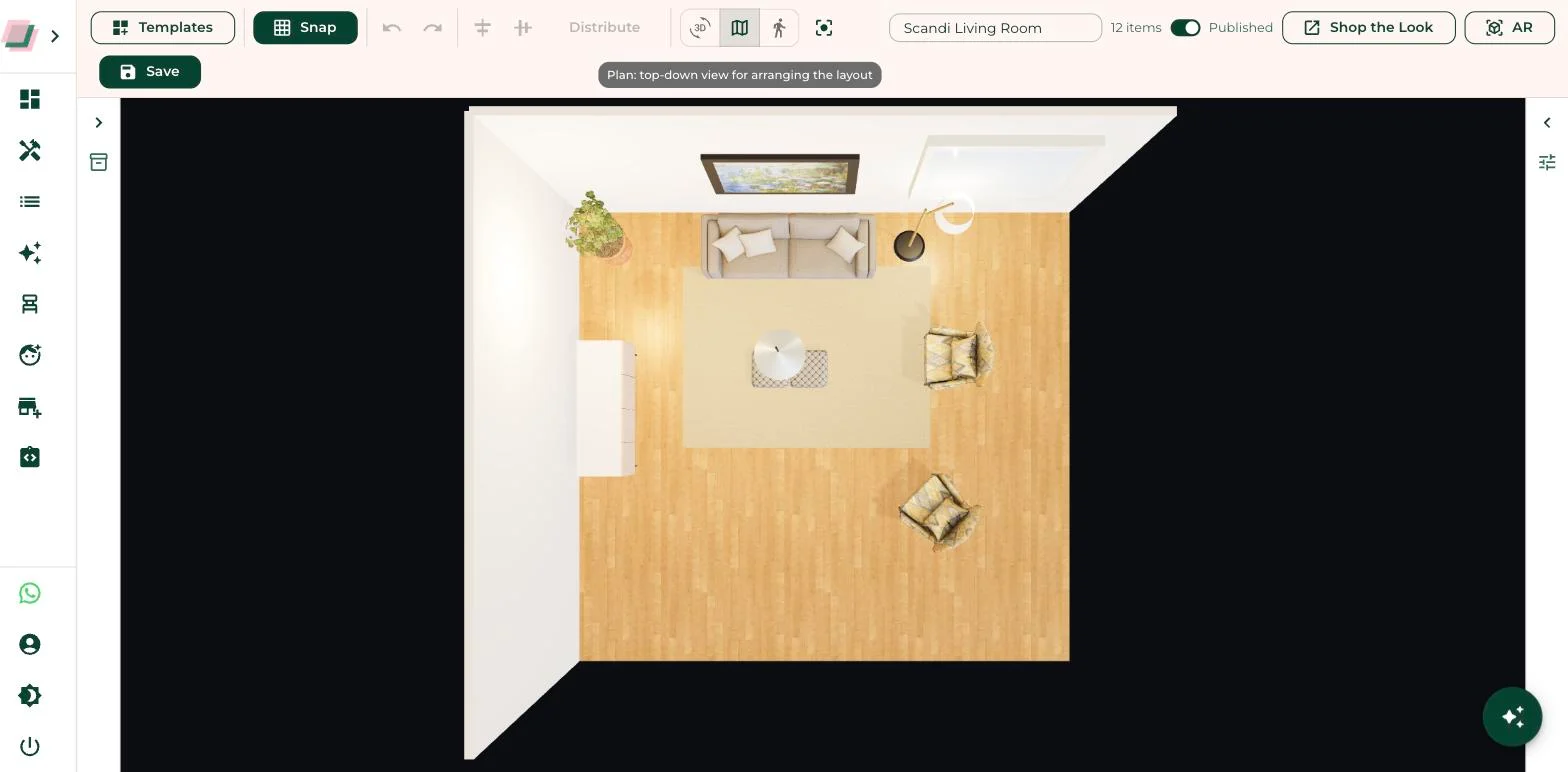
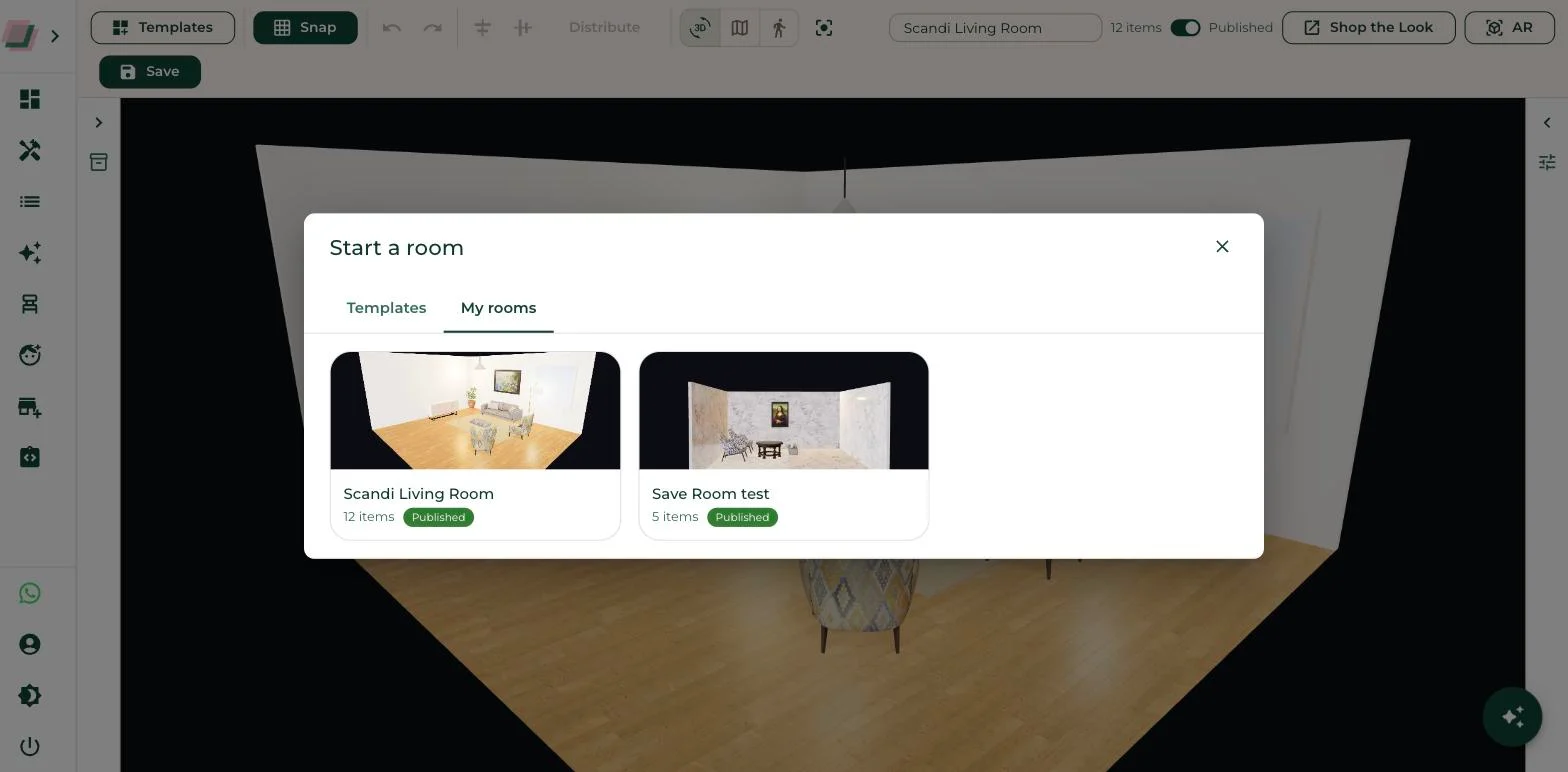
Your merchandiser opens the Room Visualizer, picks a room style, places products from the published catalogue in the configurations you want to sell, dresses the floor and walls, hangs the art, places the lights.
A saved room is private until the Published switch is on. Published rooms appear on your Shop the Look page as curated looks. Unpublish any time.
Every product in the look is still live: swap the fabric, remove the chair, add a second one, change the rug, change the room style. Your look is the starting point.
The composed room opens in the phone’s native AR viewer. On desktop, a QR hands it to the phone. Products by default; room elements optional.
What the shopper gets, 12 Oct 2026: the brand’s look as a starting point, every product live, the whole room in AR. Frames from the live page at 15 fps, nothing composited.
What makes it shoppable
Every product in a curated look is the real, published product in the configuration your team chose. The shopper can open it in the configurator, change the fabric, and the room updates. They can take the sofa out and keep the rug.
The room around the products is theirs to change too: six room styles, real floor and wall finishes, a rug library, lights that light. Switching the style keeps the products in place, so a look styled in a bright showroom can be checked in a cosy bedroom in one click.
Then the whole room goes to AR, on the phone, with no app. That is the part the lifestyle photograph could never do.
Styling for 3D
Styling for a camera the shopper controls is slightly different from styling for a photograph. These are the rules that hold up.
Enough to make a room, few enough that each is a decision the shopper can take or leave.
The configuration is stored on every placed item. If the terracotta colourway has the margin, style the look in terracotta.
The items shoppers forget to buy, and the ones with the highest attach rate when they are already in the room.
Room dimensions are editable. Style for the median flat, not the twelve-seat dining hall.
The camera position you save is the first thing the shopper sees. Set it like a hero shot.
An empty studio with a catalogue beside it is a tool. Two styled rooms is a store.
Where the link goes
Shop the Look lives on your account, themed to your brand, and is switched on per account. It is one link.
Replace “shop the look” on the lifestyle photo with a link to the room the photo was styled from.
A QR on the showroom wall opens the look on the visitor’s phone; they take the room home.
Build the visitor’s room on the stand, swap the fabric to the one they liked, hand it to their phone through the AR QR before they leave.
The customer who just bought the sofa gets the look it belongs in, with the rug and the lamp still in it.
FAQ
Last reviewed 2026-10-11.
A Shop the Look page is a brand-hosted 3D room page where shoppers open rooms the brand styled, change the products in them, and buy the pieces they keep. On Thridify it is populated from the brand’s published catalogue, themed from its Brand Settings, and switched on per account.
Your merchandising team, in the admin Room Visualizer, in a browser. No 3D team and no engineering: the products are the ones already published on the account, and styling a look is placing them, dressing the room and saving.
Yes. A curated look opens as the shopper’s own draft. Every product stays live and configurable, products can be removed or added, and the room style, floor, walls and rug can be changed.
Yes. Logo, accent colour, currency and whether prices show are read from the account’s Brand Settings, so the page matches your product experiences without separate configuration.
Not from the hosted page today. Shopper save-and-share, a bill of materials for the placed products, and an embeddable version of the page for product pages are on the roadmap.
Shop the Look is a hosted page on your account today, reached from a link. An embeddable web component is on the roadmap. The single-product 3D viewer, configurator and AR already embed on your product pages.
Two things: a 15-day free trial of the platform, and a 30-minute demo call tailored to your industry, run on Thridify’s existing live looks.
See a curated look on your category