
Connecting a custom domain to your Thridify-powered AR Education experience helps you deliver a branded, secure, and professional learning environment. If your domain is managed through Google Domains—or recently transferred to Squarespace—this guide walks you through the exact DNS steps needed to connect it with Thridify.
Before You Start
Make sure you have:
- A domain registered with Google Domains or Squarespace
- Access to your DNS settings
- A verification token from your Thridify (AR Education) dashboard
Note: Google Domains was acquired by Squarespace in 2023. If your domain was migrated, DNS management is now handled inside Squarespace with a similar setup flow.
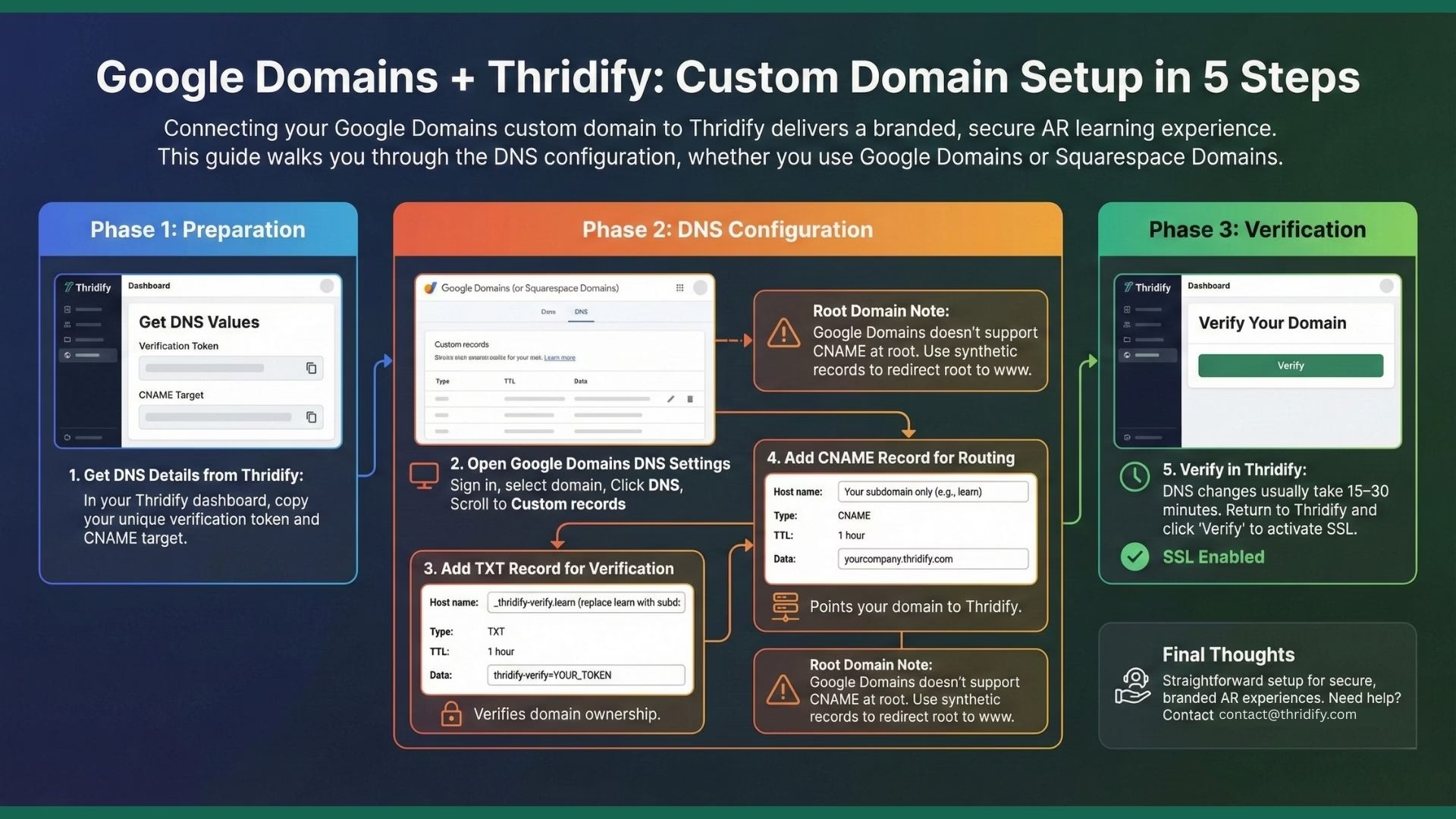
Step 1: Get DNS Details from Thridify
- Log in to your Thridify dashboard
- Go to Settings → Domain Settings
- Click Add Custom Domain
- Enter your domain (example: learn.yourcompany.com)
- Copy the verification token and CNAME target
You’ll use these values in Google or Squarespace DNS.
Step 2: Open Google Domains DNS Settings
- Sign in to Google Domains (or Squarespace Domains)
- Select your domain
- Click DNS in the sidebar
- Scroll to Custom records
Step 3: Add TXT Record for Domain Verification
Create a new TXT record:
- Host name: _thridify-verify.learn (replace learn with your subdomain)
- Type: TXT
- TTL: 1 hour
- Data: thridify-verify=YOUR_TOKEN
This verifies domain ownership with Thridify.
For root domains, use _thridify-verify as the host name.
Step 4: Add CNAME Record for Routing
Create another record with the following details:
- Host name: Your subdomain only (example: learn)
- Type: CNAME
- TTL: 1 hour
- Data: yourcompany.thridify.com
Save the record once added.
Step 5: Verify Domain in Thridify
DNS changes typically propagate within 15–30 minutes.
- Return to Settings → Domain Settings in Thridify
- Click Verify next to your domain
- SSL will be provisioned automatically after verification
Using a Root Domain with Google Domains
Google Domains doesn’t support CNAME records at the root level. The recommended approach is:
- Set up www.yourcompany.com as your Thridify custom domain
- Use Synthetic Records (subdomain forwarding) to redirect the root domain to www
Alternatively, you can move DNS management to Cloudflare for CNAME flattening support.
Final Thoughts
Google Domains makes custom domain setup with Thridify straightforward when using subdomains. With just a TXT and CNAME record, your AR Education experience is ready to launch—secure, branded, and accessible across devices without apps or coding.
Need help? Contact Contact@thridify.com for assistance.