
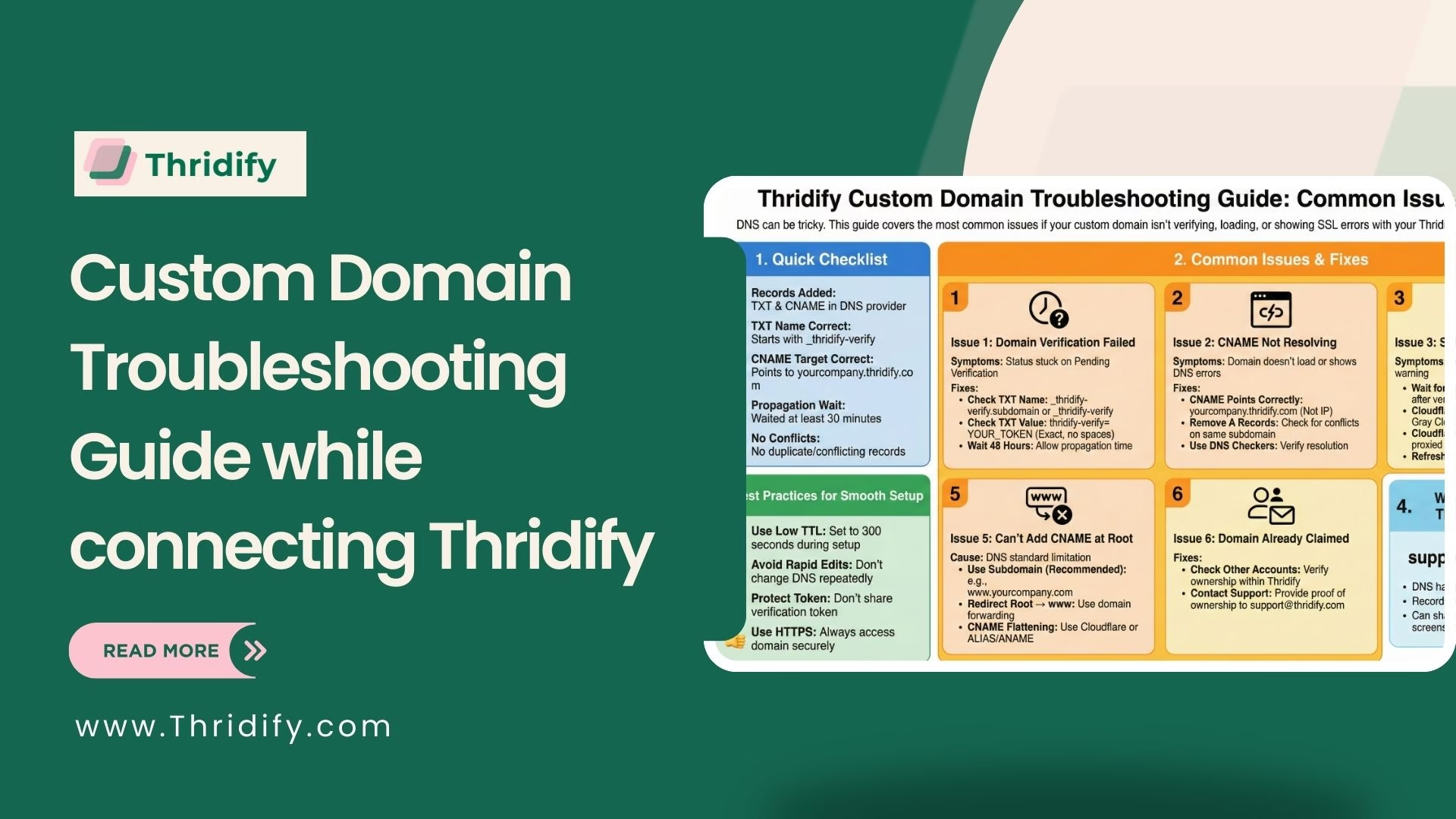
Setting up a custom domain with Thridify is usually quick—but DNS can be tricky. If your domain isn’t verifying, loading incorrectly, or showing SSL errors, this troubleshooting guide covers the most common issues and how to fix them fast.
Quick Checklist Before Troubleshooting
Confirm the basics first:
- TXT and CNAME records are added in your DNS provider
- TXT record starts with _thridify-verify
- CNAME points to yourcompany.thridify.com
- You’ve waited at least 30 minutes for DNS propagation
- No duplicate or conflicting DNS records exist
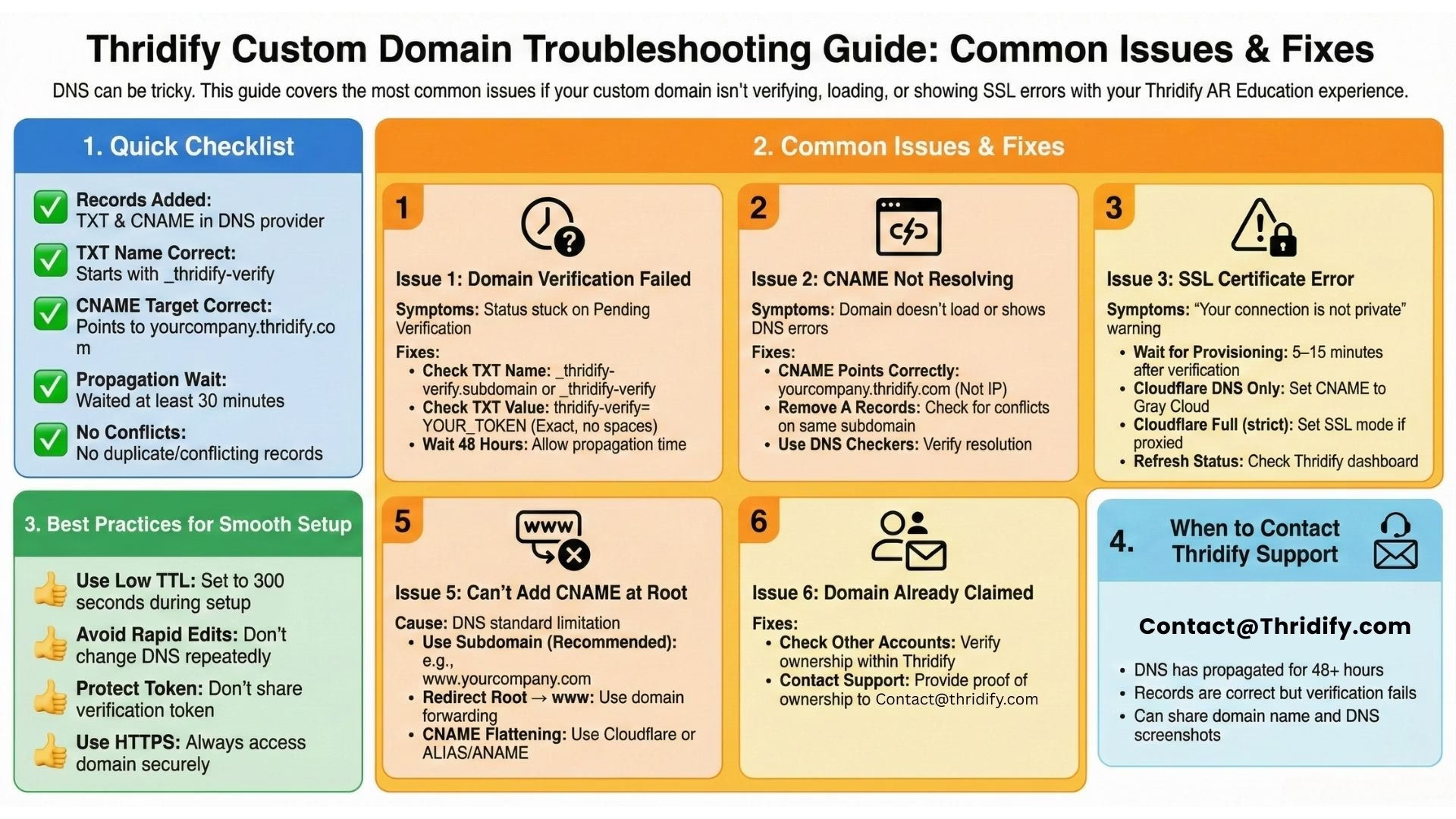
Issue 1: Domain Verification Failed
Symptoms: Status stuck on Pending Verification
Fixes:
- Ensure the TXT record name is correct:
- learn.company.com → _thridify-verify.learn
- company.com → _thridify-verify
Confirm the TXT value matches exactly:
thridify-verify=YOUR_TOKEN
- No extra spaces or quotes
- Wait up to 48 hours for DNS propagation
Issue 2: CNAME Not Resolving
Symptoms: Domain doesn’t load or shows DNS errors
Fixes:
CNAME must point to your Thridify subdomain, not an IP:
yourcompany.thridify.com
- Remove any conflicting A records using the same subdomain
- Verify CNAME resolution using DNS checker tools
Issue 3: SSL Certificate Error
Symptoms: “Your connection is not private” warning
Fixes:
- Wait 5–15 minutes after verification for SSL provisioning
- In Cloudflare, ensure the CNAME is set to DNS Only (gray cloud)
- If using Cloudflare proxy, set SSL mode to Full (strict)
- Refresh domain status in the Thridify dashboard
Issue 4: Too Many Redirects
Symptoms: ERR_TOO_MANY_REDIRECTS in browser
Fixes:
- Avoid mixed HTTP ↔ HTTPS redirect loops
- Ensure all redirects point to HTTPS
- Clear browser cookies or test in incognito mode
- Check Cloudflare SSL settings if enabled
Issue 5: Can’t Add CNAME at Root Domain
Cause: DNS standard limitation
Solutions:
- Use a subdomain like www.yourcompany.com (recommended)
- Redirect root domain → www
- Use providers that support ALIAS/ANAME or CNAME flattening (Cloudflare)
Issue 6: Domain Already Claimed
Fixes:
- Check other Thridify accounts you may own
- If previously used, contact contact@thridify.com with proof of ownership
Best Practices for Smooth Setup
- Use low TTL (300 seconds) during setup
- Avoid editing DNS repeatedly within short intervals
- Don’t share your verification token
- Always access your domain over HTTPS
When to Contact Thridify Support
Reach out to contact@thridify.com if:
- DNS has not been propagated for 48+ hours
- Records are correct but verification still fails
- You can share your domain name and DNS screenshots